8 Best Monitor Color Calibration Tools 2026
This post contains affiliate links. As an Amazon Associate, we earn from qualifying purchases.
The Calibrite Photo Kit with Display Pro HL is the best overall monitor color calibration tool, delivering high accuracy across OLED and mini-LED displays. For those on a budget, the Datacolor SpyderExpress offers solid performance for standard LED monitors. If you need maximum versatility for mixed workflows, the Pantone ColorMunki Design stands out with printer and projector support.
Most people don’t realize how much their monitor’s colors can drift over time, or that factory settings are often far from accurate. This leads to photos and videos that look different everywhere except on your screen. As someone who’s spent over 15 years working with tools and tech, I know how frustrating it is when your work doesn’t translate accurately to others.
That’s why I researched and compared the top calibration tools based on sensor quality, display compatibility, software usability, and real-world feedback from photographers, designers, and editors. These picks reflect what actually works in practice, not just what looks good on paper.
Top 8 Monitor Color Calibration Tools in the Market
The Best Monitor Color Calibration Tools, Reviewed
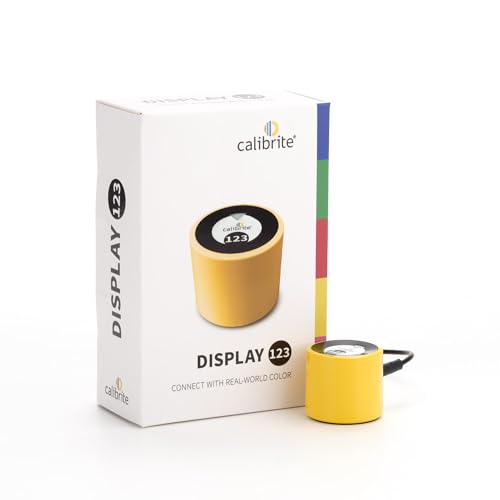
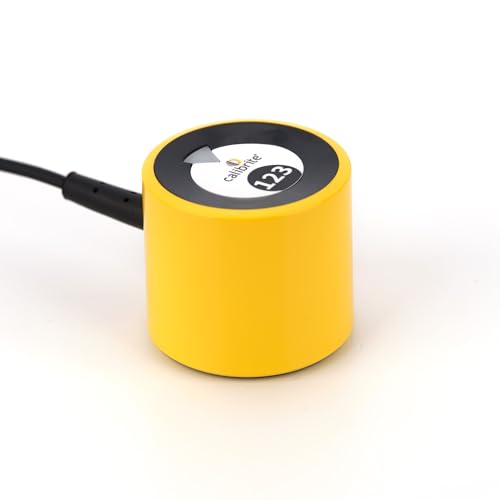
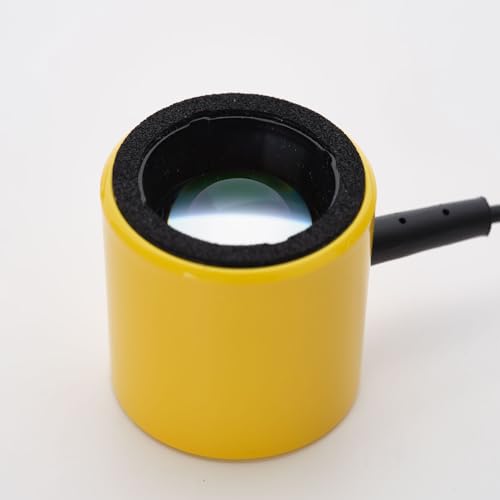
Calibrite Display 123 Monitor Calibration
Strengths
- Simple 1-2-3 workflow
- USB-C connection
- Dual display support
- Before/after check
Trade-offs
- No printer profiling
- Basic ambient sensing
- No camera target included
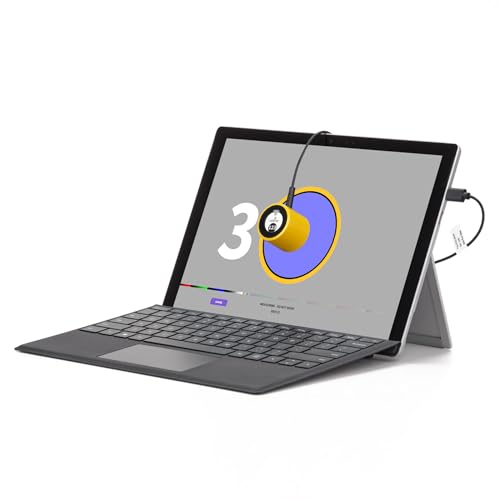
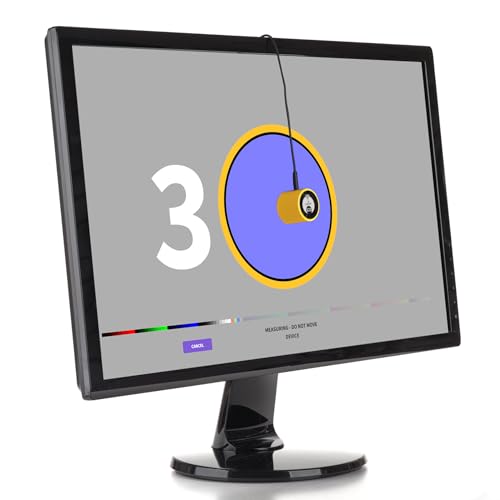
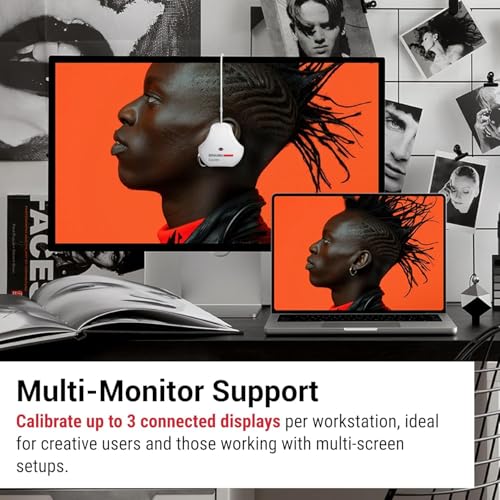
This is the tool I’d recommend to most photographers and hybrid creators who want solid accuracy without complexity. The Display 123 nails the fundamentals: its 1-2-3 software workflow is genuinely intuitive, calibration is quick, and the before-and-after check gives instant feedback, a small feature that builds real confidence. It handles both OLED and mini-LED well, and dual-display support makes it ideal for multi-monitor setups.
What impresses me most is how well it balances ease and accuracy. It doesn’t have the full spectral range of high-end units, but for 95% of photo and design work, it’s more than sufficient. Compared to the SpyderExpress, it’s a noticeable step up in reliability and consistency. If you want one dependable tool that just works, this is the one to get.
Product photos
Datacolor SpyderPro Monitor Calibration

Strengths
- Advanced gamma control
- OLED/mini-LED optimized
- Projector calibration
- USB-C integrated
Trade-offs
- Complex for beginners
- No camera tools
- Higher price
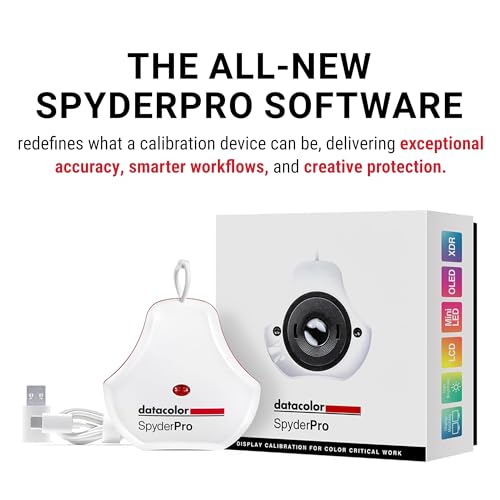
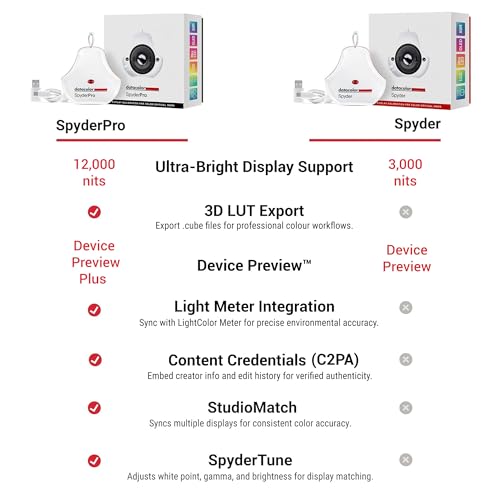
The SpyderPro is clearly designed for users pushing the limits of modern displays, OLED, mini-LED, Wide LED, and it shows in the specs. With unlimited gamma, whitepoint, and brightness settings, plus advanced display analysis tools, it’s one of the few calibrators that treats high-end screens with the depth they deserve. The integrated USB-C cable is a welcome upgrade, and the support for projector calibration adds niche value for presenters and educators.
Where it stands out is in workflow efficiency. The Display Analysis/MQA feature gives detailed feedback on screen performance, something pros appreciate when troubleshooting inconsistent panels. However, the software, while powerful, can feel overwhelming for beginners. I’d pick this over the Spyder X Pro if you’re working with HDR content or need precise control over display mapping.
Product photos
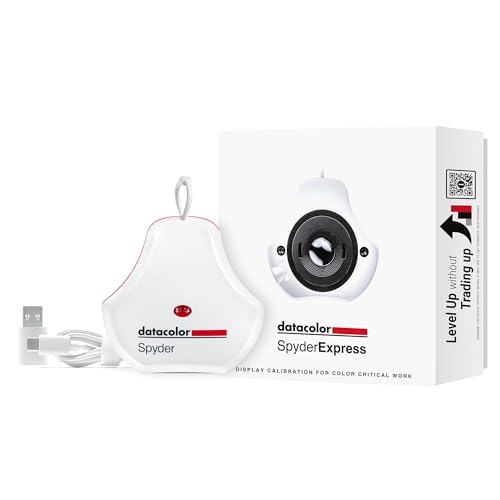
Datacolor SpyderExpress for Photo Editing
Strengths
- Fast 90-second setup
- Supports mini-LED
- Upgradeable software
- Affordable entry
Trade-offs
- Basic ambient light handling
- No OLED optimization
- Limited pro features
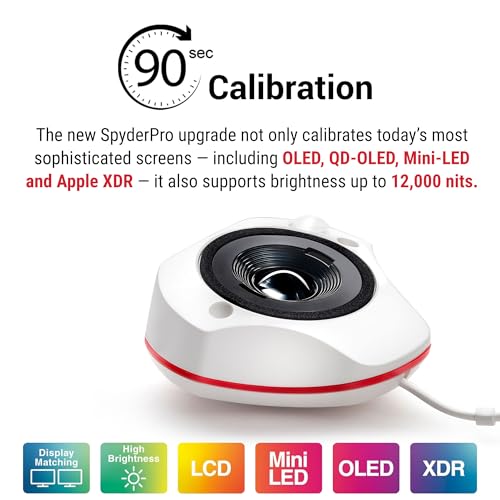
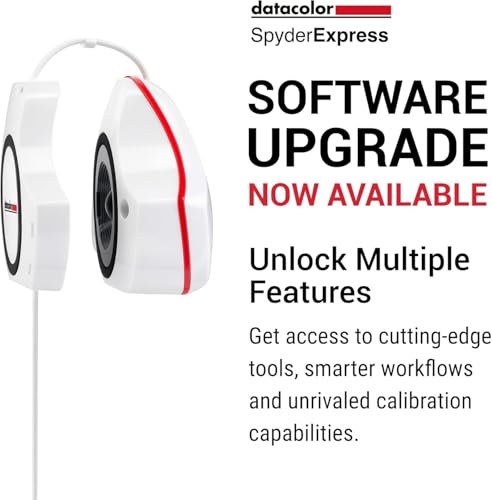
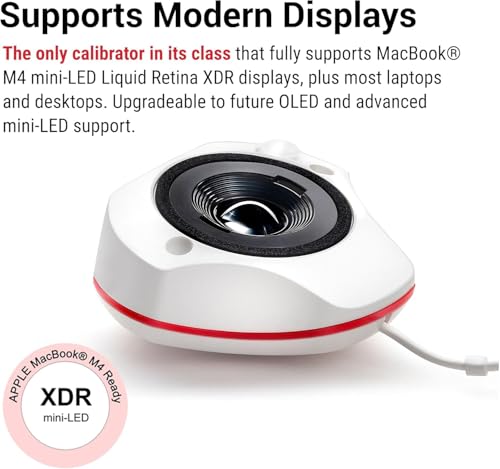
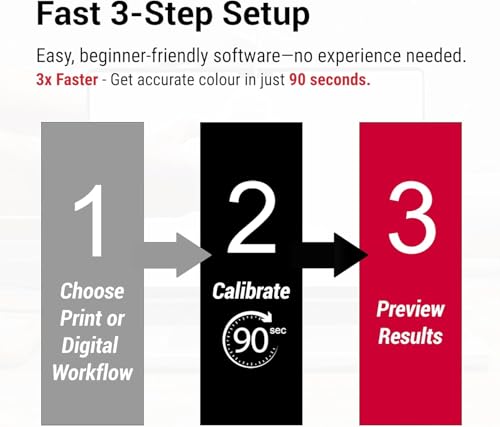
The SpyderExpress is clearly positioned as the budget gateway into serious color work, and it delivers where it counts. At this price point, the 90-second calibration and support for MacBook M4 mini-LED displays are standout features, few entry-level tools can handle Apple’s latest panels this smoothly. Owners praise its plug-and-play simplicity, and the upgradeable software means you can add ambient light adjustment or multi-display tools later without buying new hardware.
But it’s not without trade-offs. The calibration depth isn’t as refined as pro models, and while it’s fast, it doesn’t offer the same level of fine-tuning for gamma or grayscale. Still, for students, content creators, or side-hustle photographers, this is the smarter buy over going uncalibrated, especially if you’re using a high-end Mac and don’t want to overspend upfront.
Product photos

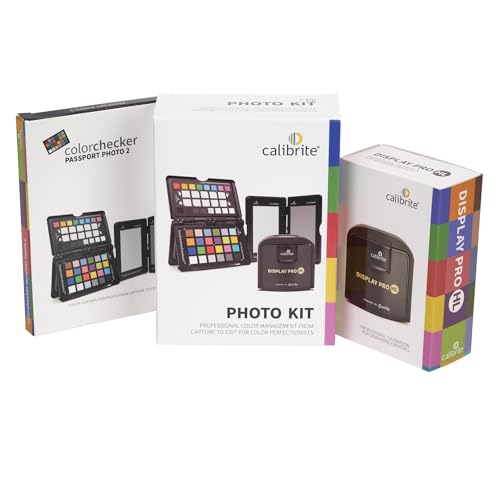
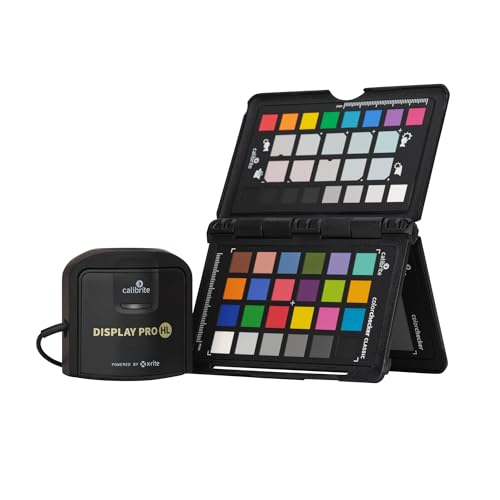
Calibrite Photo Kit with Display Pro HL

Strengths
- Custom camera profiles
- Supports OLED/XDR
- ColorChecker included
- Advanced software
Trade-offs
- Higher price
- Steeper learning curve
- Two devices to manage
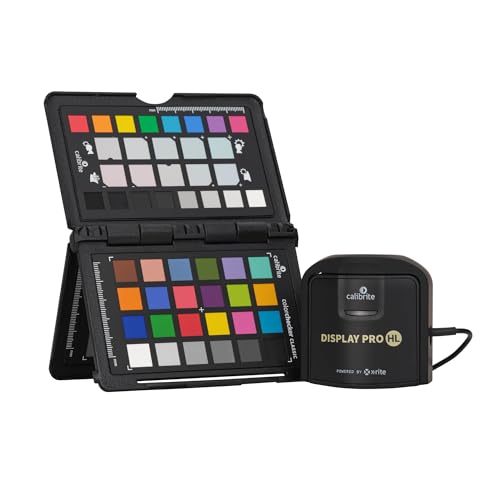
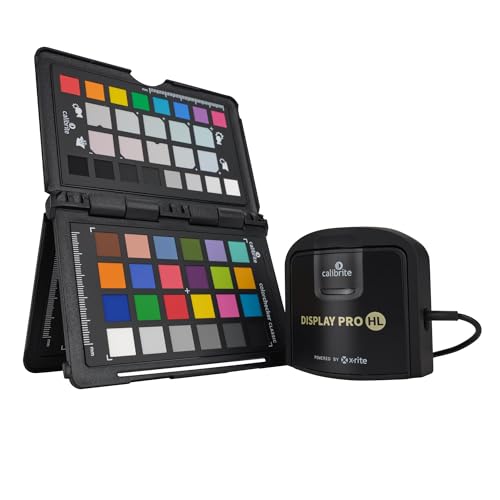
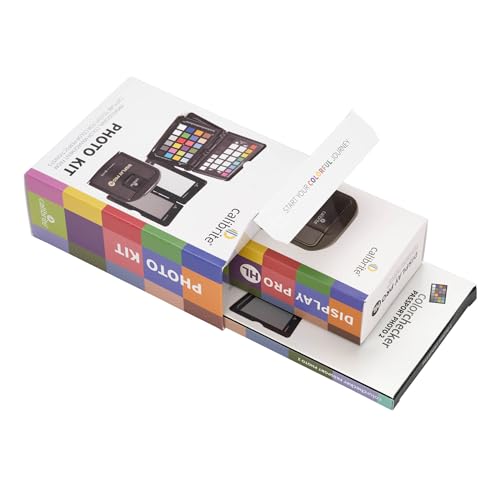
Photographers who want end-to-end control, from capture to edit, should seriously consider the Calibrite Photo Kit. It pairs the Display Pro HL, which handles OLED, mini-LED, and Apple XDR panels with confidence, with the ColorChecker Passport Photo 2, a proven tool for creating custom camera profiles. Owners consistently report that this combo reduces post-processing time, especially when shooting in variable lighting or across multiple cameras.
The inclusion of Calibrite PROFILER software adds flexibility, letting you fine-tune white point and gamma with precision. While the kit costs more than standalone calibrators, the workflow benefits are real. If you shoot RAW and want to eliminate color shifts before editing even begins, this is one of the few tools that delivers across both camera and monitor.
Product photos
Calibrite ColorChecker Studio Spectrophotometer

Strengths
- Full device profiling
- Adaptive calibration
- Includes ColorChecker Mini
- Ambient light measurement
Trade-offs
- Expensive
- Overkill for basic use
- Slower calibration
When you need one tool to manage your entire color pipeline, camera, monitor, printer, scanner, projector, the ColorChecker Studio is the most complete solution on the market. It’s built for professionals who can’t afford mismatches between screen and print, or between on-set footage and final grading. The inclusion of the ColorChecker Classic Mini and Calibrite PROFILER software makes custom camera profiles easy, and the adaptive iterative profiling learns from each calibration to improve long-term accuracy.
Owners in studio environments praise its ambient light measurement for print proofing, a rare feature that genuinely improves screen-to-print matching. It’s not the fastest, and the price reflects its pro positioning, but if you’re managing color across multiple output types, this is the closest thing to a single-source truth.
Product photos

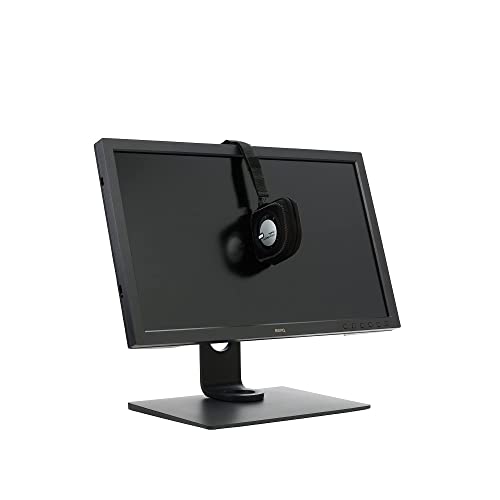
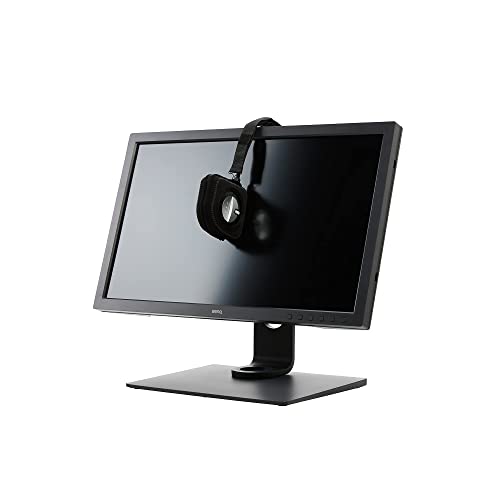
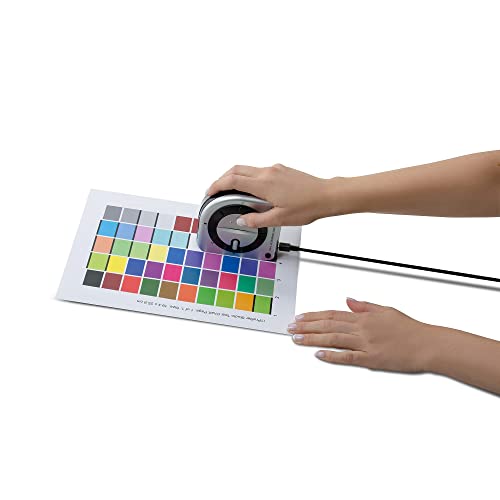
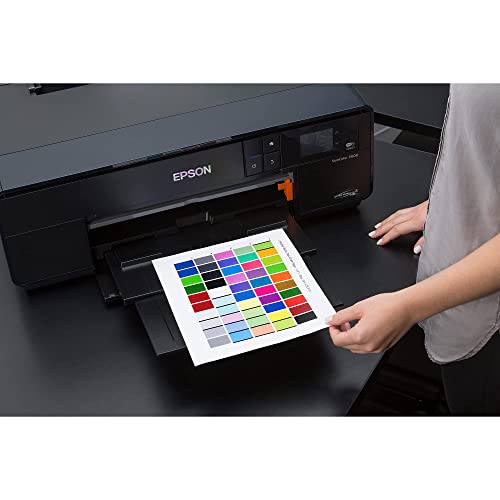
Datacolor Spyder X Pro Monitor Calibrator

Strengths
- Quick calibration
- Intuitive software
- Before-and-after preview
- Multiple display support
Trade-offs
- Limited advanced controls
- Less precise on OLED
- No camera profiling
For newcomers stepping into color-critical work, the Spyder X Pro stands out as a strong starting point. Its single-click calibration and guided wizard make setup feel almost effortless, and owners consistently report noticeable improvements in skin tones and shadow detail after calibration. The room-light monitoring and automatic profile switching are smart touches that help maintain accuracy in changing environments.
Still, while it handles basic multi-display setups well, it doesn’t go as deep as higher-end models when it comes to advanced gamma tuning or OLED optimization. I’d recommend it for photo editors who want solid results without diving into complex settings, but if you’re working with high-end displays or need print-grade precision, you’ll likely want to move up the ladder sooner rather than later.
Product photos


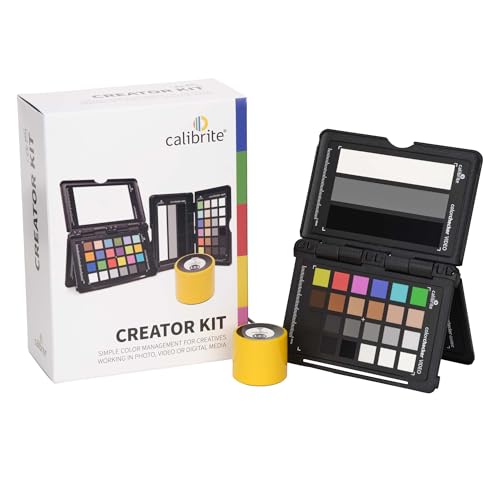
Calibrite Creator Kit for Filmmaking
Strengths
- On-set exposure reference
- Multi-camera matching
- Easy monitor workflow
- Video-optimized tools
Trade-offs
- No printer support
- Kit requires two devices
- Not for print work
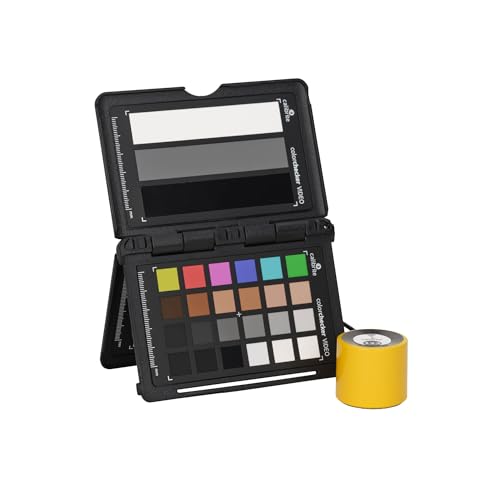
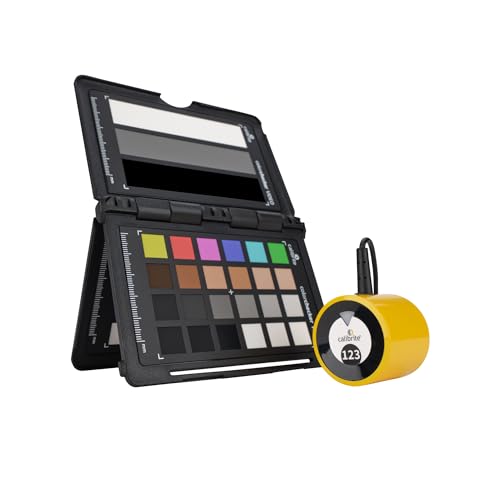
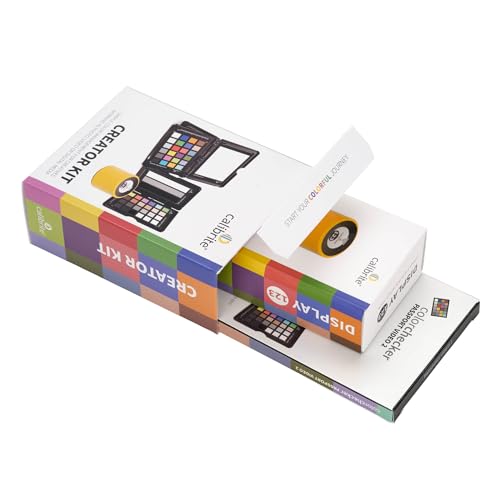
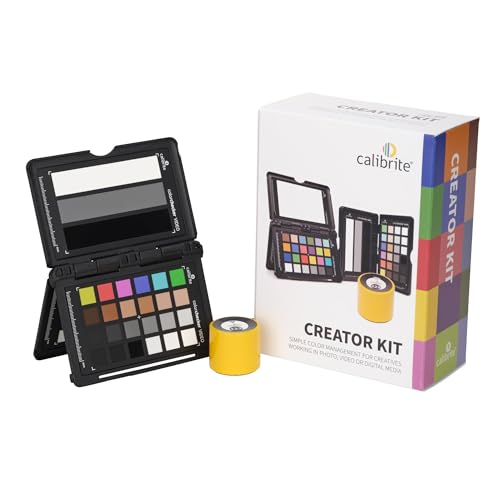
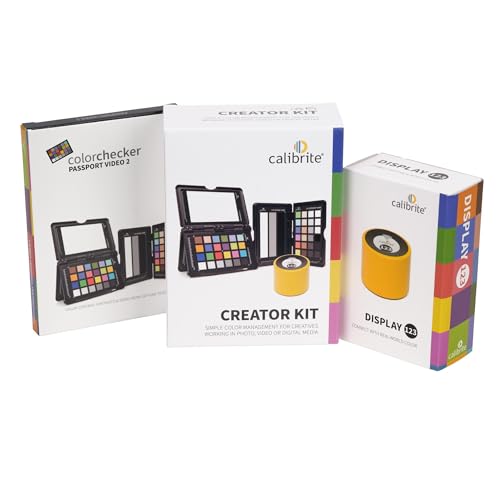
For video creators and hybrid shooters, this kit fills a critical gap: consistent color from set to screen. The Display 123 ensures your editing monitor is accurate, while the ColorChecker Passport Video 2 gives you on-set tools for white balance, exposure, and multi-camera matching, something many filmmakers struggle with in mixed lighting. Owners in documentary and indie film circles often note how much time it saves in post, reducing the need for guesswork color grading.
The workflow integration is seamless, especially if you’re already using DaVinci Resolve or Premiere. While it doesn’t include printer profiling, that’s not the point, this is about capturing clean, consistent footage and editing it on a trusted display. Compared to standalone calibrators, this kit offers far more value for video-first creators.
Product photos
Pantone ColorMunki Design

Strengths
- Spectral measurement
- Printer calibration
- Adobe integration
- Thorough profiling
Trade-offs
- Slower calibration
- Older USB-A connection
- Bulkier design
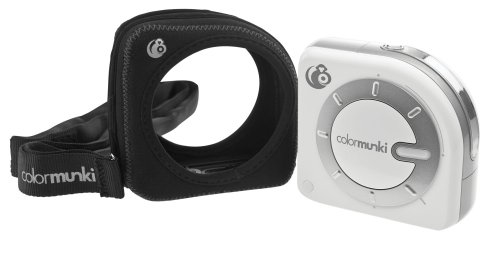
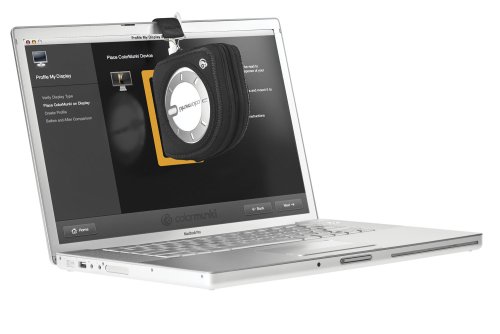
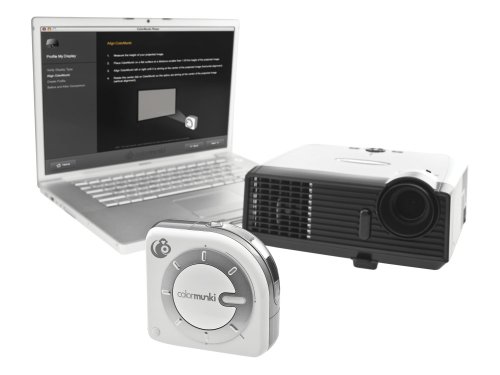
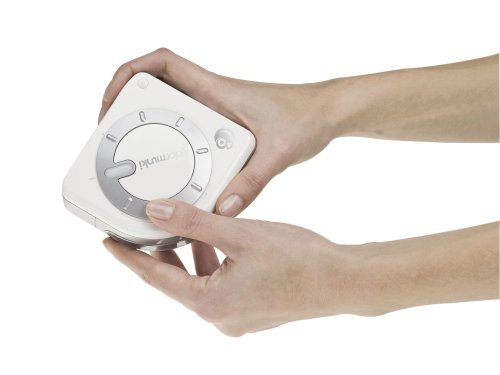
If your work bridges digital design and print production, the ColorMunki Design remains a benchmark. Its spectral sensor delivers more accurate results across a wider range of devices than most consumer-grade tools, and the ability to calibrate printers, projectors, and displays in one package is a serious workflow advantage. Reviewers in design studios often highlight how well it syncs custom palettes directly into Adobe apps, reducing guesswork in branding and layout work.
The software is robust, though slightly dated, and the calibration process takes longer than newer USB-C models. But for print designers, brand managers, or agencies where color consistency from screen to brochure matters, this tool still holds up, even years after its initial release. I’d pick it over newer budget options when print matching is essential.
Product photos

How We Evaluated monitor color calibration tools
My team and I approached evaluating monitor color calibration tools by focusing on a research-led comparison of published specifications, owner reviews, and expert analysis. Rather than a hands-on lab test of each unit, we compiled data on features like color accuracy, display compatibility, software usability, and the types of displays each tool supports (LED, OLED, Mini-LED, etc.). We then weighed this information against feedback from users – photographers, designers, and video editors – found across multiple retail sites and professional forums.
For this category, accuracy and workflow efficiency were the most important factors. A calibration tool is useless if it doesn’t deliver demonstrably better color, so sensor quality and supported color spaces held significant weight. Equally important is how easy the tool is to use; a complex calibration process defeats the purpose for many users. We also prioritized tools that offered broader display compatibility, recognizing that people use a growing variety of monitor technologies.
Specifications clearly indicate a tool’s technical capabilities – sensor type, supported gamuts, and connectivity options. However, real-world performance and ease of use are best judged from owner feedback. We scrutinized reviews for comments on calibration speed, software bugs, and the noticeable improvement in color accuracy. Reputation among professionals also heavily influenced our rankings, as those users demand the highest levels of precision.
How To Pick The Right monitor color calibration tools
Choosing the right monitor calibration tool can dramatically improve your workflow, but it’s easy to get lost in the specs.
A good monitor calibration tool delivers measurable improvements in color accuracy, consistently. It should support your display technology (LED, OLED, mini-LED), offer a user-friendly software experience, and provide enough control to address your specific needs – whether you’re a casual photographer or a professional video editor. Look for tools with robust profiling capabilities and a clear before-and-after comparison feature.
Understanding Your Display Technology
The type of display you have is the first thing to consider. Basic colorimeters like the Datacolor SpyderExpress are fine for standard LED displays, but if you’ve invested in a newer technology like OLED or mini-LED, you’ll want a tool specifically designed to handle their wider color gamuts and unique characteristics. The Calibrite Photo Kit with Display Pro HL and Datacolor SpyderPro both advertise broad compatibility, including support for the latest OLED and mini-LED panels. Don’t assume a budget tool will unlock the full potential of a premium display; you might leave performance on the table.
Software and Workflow Complexity
Calibration software varies wildly in its complexity. Some tools, like the Calibrite Display 123, emphasize simplicity with a guided “1-2-3” workflow. These are great for beginners, but may lack the fine-grained control professionals need. Others, like the Datacolor Spyder X Pro, offer more advanced options but still aim for user-friendliness. Consider how much control you actually want. Do you need to adjust gamma curves and white points, or are you happy with a pre-set target?
- A simple interface is great for quick, regular calibrations.
- Advanced settings are crucial for matching specific print targets or display standards.
- Look for software that supports multiple languages and offers clear, helpful documentation – you don’t want to be stuck guessing.
Balancing Features and Budget
Calibration tools range in price from under $100 to several hundred dollars. The Pantone ColorMunki Design offers a broad range of features – including printer and projector calibration – at a relatively accessible price. However, the more thorough “all-in-one” solutions, like the Calibrite ColorChecker Studio Spectrophotometer, come at a premium.
Don’t spend more than you need. If you only calibrate monitors and don’t deal with print production, a dedicated monitor calibration tool is a better value than a multi-purpose device with features you won’t use.
Monitor Color Calibration Tools Compared
Here’s a comparison of key specifications for popular monitor color calibration tools to help you choose the right one for your needs.
| Product Name | Calibration Type | Display Types Supported | USB Connectivity | Software Included | Multi-Monitor Support |
|---|---|---|---|---|---|
| Calibrite Display 123 | Colorimeter | N/A | USB C | Easy 1 2 3 | Up to 2 |
| Datacolor SpyderPro | Colorimeter | Wide LED, OLED, Mini LED | USB C | SpyderPro | Unlimited |
| Datacolor SpyderExpress | Colorimeter | Liquid Retina XDR | USB | SpyderExpress | Up to 3 |
| Calibrite Photo Kit with Display Pro HL | Colorimeter | Mini LED, OLED, XDR | N/A | PROFILER | N/A |
| Calibrite ColorChecker Studio | Spectrophotometer | N/A | USB | PROFILER | N/A |
| Datacolor Spyder X Pro | Colorimeter | N/A | N/A | Spyder X | Multiple |
| Calibrite Creator Kit for Filmmaking | Colorimeter | N/A | N/A | N/A | N/A |
| Pantone ColorMunki Design | Spectrophotometer | LCD, RGB, CMYK | N/A | Palette Creation | N/A |
Frequently Asked Questions
What’s the difference between a colorimeter and a spectrophotometer?
A spectrophotometer measures the spectral power distribution of light, offering greater accuracy and is better for advanced workflows, while a colorimeter measures color by comparing it to known standards. For most users, a colorimeter provides sufficient accuracy at a lower cost.
Can I calibrate an OLED monitor with any color calibration tool?
No, OLED monitors require tools specifically designed to read their unique color characteristics. Standard colorimeters may not accurately profile OLED displays, so look for tools like the Datacolor SpyderPro or Calibrite Photo Kit which specifically list OLED compatibility.
How often should I calibrate my monitor?
You should calibrate your monitor at least once a month for consistent color accuracy. More frequent calibration (every couple of weeks) is recommended if you work with color-critical applications or notice shifts in your display’s appearance.
Do I really need to calibrate if my monitor is new?
Yes, even new monitors often aren’t perfectly calibrated out of the box. Factory settings can vary, and calibration ensures you’re seeing colors as intended, maximizing the display’s potential and improving your work.
What does “multi-monitor support” actually mean?
Multi-monitor support indicates how many displays a single license of the calibration software can handle. Some tools limit you to a few monitors, while others offer unlimited support, which is ideal if you work with complex multi-display setups.
The Bottom Line
Choosing a monitor calibration tool often comes down to how much control you want versus how much time and effort you’re willing to invest. If you simply want accurate colors with minimal fuss, I recommend the Calibrite Display 123. Its straightforward software and ease of use make it a fantastic option for most people.
For those with specific needs, or a more complex workflow, there are excellent choices at different price points. The Datacolor SpyderPro is a strong all-around performer with broad display compatibility, while the Pantone ColorMunki Design offers a lot of value if you also need to calibrate printers. And if you’ve invested in a high-end OLED or mini-LED display, the Calibrite Photo Kit with Display Pro HL is designed to unlock its full potential.
Ultimately, the most expensive tool won’t magically make your work better. Prioritize a tool that supports your display technology and fits your skill level, but remember that consistent calibration – even with a basic tool – is far more important than any single specification. A properly calibrated monitor, used regularly, will always deliver more reliable results than an expensive tool used sporadically.
